|
90min & 99min CDRs
90min CD-Rs
Overburning a CDR
allows you to get more capacity from
your disks by writing more data than
specified by the manufacturer of the
disk. Note: there is a difference
between overburning and 99min CDRs,
as 99mins are manufactured differently
and have a finer track definition
and a shorter lead out area.
This test demands
two things, approved media and a drive
that's capable of overburning in DAO
mode (sometimes you have to write
at a slow speed).
We used Nero
CD Speed to simulate a writing
to an 80min+ Mirror Max CD-R, until
it coastered:
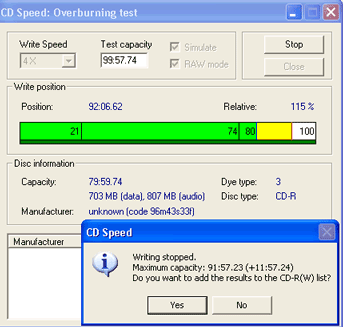
As shown in the screen shot, the
drive supported overburning and managed
to write up to 91.57mins on the 80min+
CDRs (also known as 90min CDRs).
99min CD-Rs
Writing
Next we tried some officially branded
99min Infiniti CD-Rs, to push the
drive a little bit further:
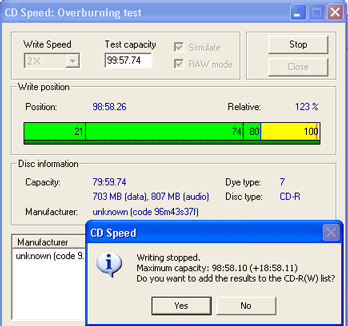
This time the drive got further and
allowed us to burn 98.58 mins on a
normal 99min approved CD-R media.
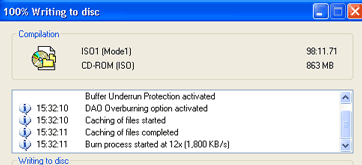
We verified this figure was correct
by actually writing 863MB onto a CD-R
disk.
Reading
Just because a drive can write 99min
of data doesn't necessarily mean that
it will read the disks up to that
limit as well. Often, drives will
happily write up to 100mins but when
it comes to reading beyond spec. they
wont read more than your average CD-ROM.
In this test we created a disk (x12
writing) using Nero and filled it
up to 98.11 mins of data and checked
how much it could read:
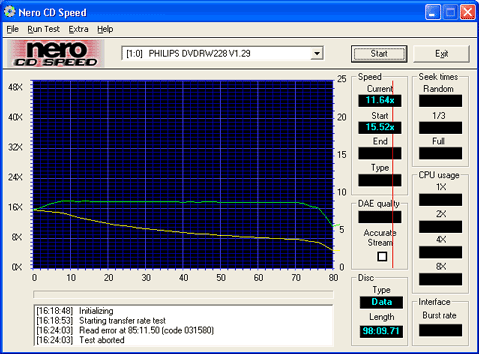
In this case the Philips behaved
like most drives and wouldn't read
the full 98mins of data that it had
written. It can only read up to 85
mins.
CloneCD
CloneCD is a popular program for
backing up protected CDs. It requires
certain features from a drive to function
correctly. The important feature one
should look for is: DAO RAW, so it
can write data uncorrected (failing
this SAO RAW is preferred).
We checked the capabilities of the
drive under Clone-CD:
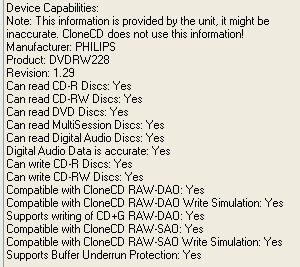
The writing modes available in CloneCD
are: DAO RAW / SAO RAW.
Reading
We checked the read
performance of the popular Safedisk
2 protected game: MaxPayne. Intelligent
Bad Sector scanner was turned off
and Fast error skip was turned on
so as to compare it with the other
drives. The drive had good performance
up until 70% of the way through until
it slowed down dramatically. Good
performance in this case was 24 x
average reading until it got to 70%
and then things went bad, it started
getting slower and slower and at one
point it was only reading 50K/Bytes
a second. So we aborted the test.
Not one for giving up we tried it
with Intelligent Bad Sector scanner
turned on and it gave a good all round
result:
I 00:10:24 Device Scan found
0 CD-ROMs and 1 CD-Writers!
I 00:10:43 Starting copy from PHILIPS
DVDRW228 to C:\maxpayne.CCD
I 00:10:43 Read Speed for Data Tracks:
Maximum
I 00:10:43 Read Speed for Audio Tracks:
Maximum
I 00:10:43 Read SubChannel Data from
Data Tracks: Yes
I 00:10:43 Read SubChannel Data from
Audio Tracks: Yes
I 00:10:43 Fast Error Skip: Yes
I 00:10:43 Don't report read errors:
Yes
I 00:10:43 Intelligent Bad Sector
Scanner: Yes
I 00:10:43 CD contains CD-Text: No
I 00:10:43 Reading Track 1... (Blocks
0-358329)
I 00:10:53 Fast Error Skip has been
enabled automatically!
I 00:11:24 Fast Error Skip has been
disabled automatically!
I 00:29:14 Duration of operation:
00:18:31
I 00:29:14 Average Speed: 756 kBytes/s
(4.30)
I 00:29:14 Reading finished!
It took 18mins to read the CD and
but needed additional help i.e. I.B.S.
on.
Region Protection
Most new DVD-ROM drives are region
protected and will only playback a
DVD movie title from a certain region.
This is controlled by the use of region
codes.
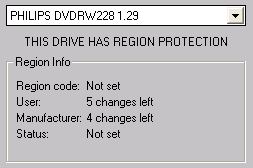 Region
Codes are part of the DVD standard.
The region number defines the region
of the DVD-ROM drive and its playback
hardware/software. I downloaded the
latest version of Drive Region Info
to check the status of the region
code for this drive. Region
Codes are part of the DVD standard.
The region number defines the region
of the DVD-ROM drive and its playback
hardware/software. I downloaded the
latest version of Drive Region Info
to check the status of the region
code for this drive.
This drive has RPC-II
region protection. RPC-2 devices allow
you to change the drive's region a
certain number of times before they
become permanently locked.
  Page
4 - Last Updated: 25 July 2002 Page
4 - Last Updated: 25 July 2002
|